SEO for Developers · Business Tips
How to check robots.txt
A public text file at the root of your domain, read against three questions: is anything you want indexed disallowed, is anything Google needs to render the page blocked, is the sitemap listed. Then the one thing robots.txt can't do — keep a page out of Google.

How to check robots.txt, in one paragraph
To check robots.txt, open yourdomain.com/robots.txt in a browser — it's a public text file — and read it against three questions: is anything you want indexed under a Disallow line, is anything Google needs to render the page (the theme's CSS and JavaScript) blocked, and is the sitemap listed. Then confirm how Google reads it in Search Console's robots.txt report.
Google's description of the file is the plainest one: it "tells search engine crawlers which URLs the crawler can access on your site", and it's used "mainly to avoid overloading your site with requests". It is a traffic sign for crawlers, not a lock on the pages — and that distinction is the whole of the last section.
I check it on every site before anything else, because a single wrong line here makes every other SEO effort pointless, and it's the fastest fix there is.
It's one file, read the same way on every site, and my team reads it first on every audit.
Open the file and read the blocks
yourdomain.com/robots.txt. If it isn't there, that's fine — no file means no restrictions. If it is, read it top to bottom; it's short.
The file is groups of rules. Each group starts with a User-agent line naming which crawler it applies to (an asterisk means all of them; Googlebot means Google), followed by Disallow lines for paths that crawler may not fetch and Allow lines for exceptions. Google reads four directives — User-agent, Disallow, Allow and Sitemap — and ignores the rest. A Disallow: / with nothing after the slash blocks the entire site; a Disallow: /cart/ blocks one folder.
Read each Disallow and ask what's under that path. /wp-admin/ is fine. /cart/ and /search/ are fine — those pages don't belong in the index. /wp-content/ is not fine, because that's where the theme's CSS and JavaScript live, and Google needs to fetch those to render the page properly. And / on its own is the one that gets sites de-listed after a launch.
The three questions
Every robots.txt check comes down to these. The free robots & sitemap checker asks them for you — it reads the file and the sitemap and flags a blocked site, blocked assets, and a missing or empty sitemap.
- Is anything you want indexed disallowed? Compare the Disallow paths with the pages that earn — services, products, posts. If a Disallow covers them, remove it. Search Console's Page indexing report confirms the damage under the reason "Blocked by robots.txt".
- Are CSS and JavaScript blocked? Google renders pages the way a browser does. If the stylesheet and scripts are under a blocked path, Google sees an unstyled page and may judge it broken. Allow the asset folders.
- Is the sitemap listed? A Sitemap: line with the full URL tells every crawler where the sitemap is, no Search Console needed. If it's missing, add it; if it names a sitemap that no longer exists, fix it — How to create an XML sitemap.
Test it the way Google reads it
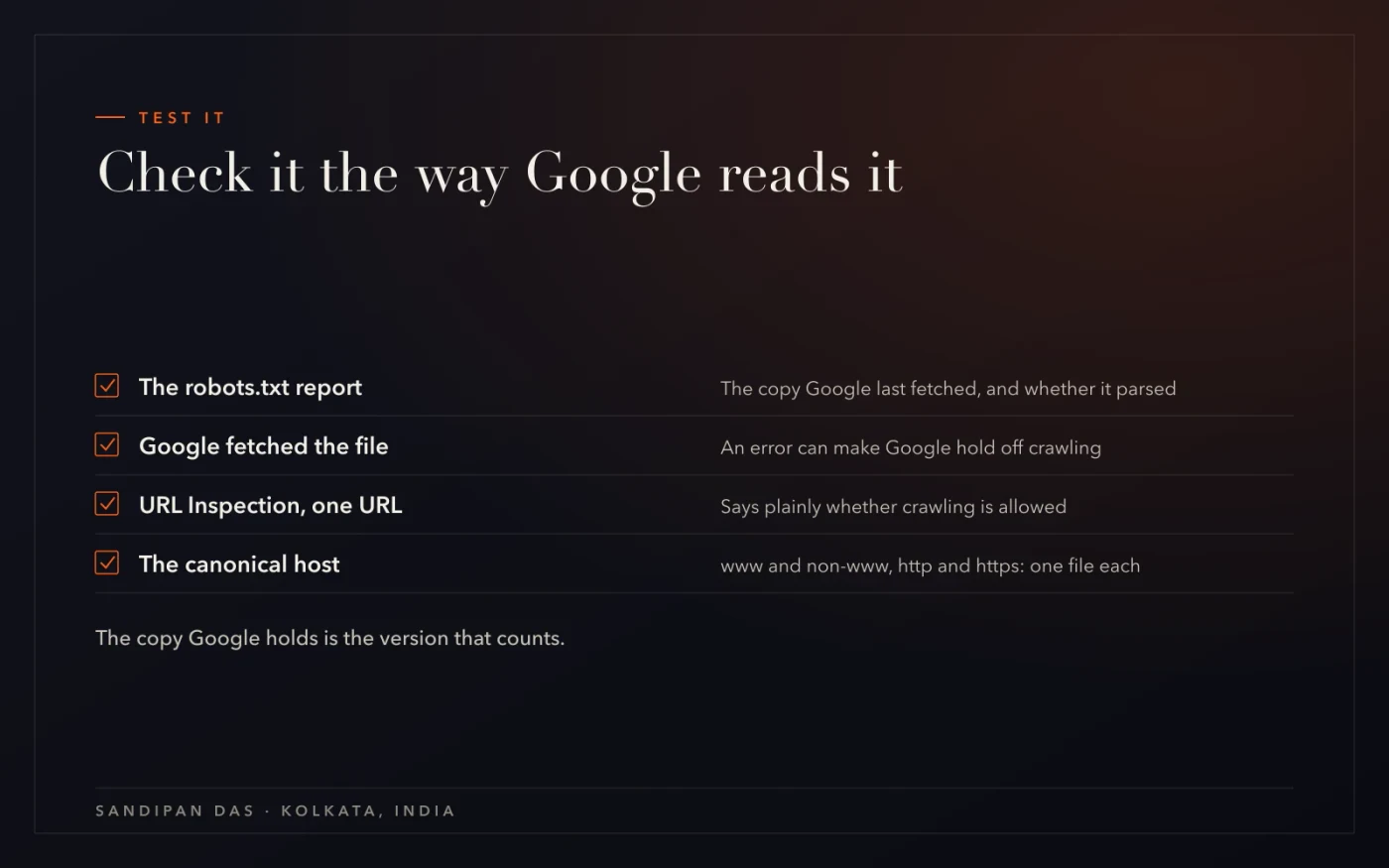
Search Console has a robots.txt report that shows the file Google last fetched, when, and whether it parsed. That's the version that counts — not the one on your server right now, if the two differ.
Two things to check there. First, that Google fetched the file at all: a robots.txt that returns an error can make Google hold off crawling entirely. Second, the copy Google holds against the copy you see — after an edit, Google picks up the new file on its next fetch, not instantly. For a single URL, URL Inspection says plainly whether crawling is allowed.
One host, one file. www.yourdomain.com and yourdomain.com are different hosts to a crawler, and so are http and https. The file that matters is the one on the host Google indexes — check the canonical host, then its robots.txt.
The WordPress check, and the staging leftover
On WordPress there's a setting — "Discourage search engines from indexing this site" — that adds a noindex to every page. Older WordPress versions also wrote a Disallow: / into the virtual robots.txt. Ticked on the staging copy, forgotten at launch, it's a common reason a new site never appears.
Settings → Reading → the checkbox. What I do on launch day:
- Untick it on the live site, then view a page's source to see the noindex gone, and read yourdomain.com/robots.txt in a browser for any Disallow: / left behind.
- Check the plugins that write their own — a security or SEO plugin may have its own setting.
- Look for a physical file — a robots.txt in the site's root folder overrides the one WordPress generates, so there can be two truths; the one the browser shows is the one Google reads.
Blocked is not hidden
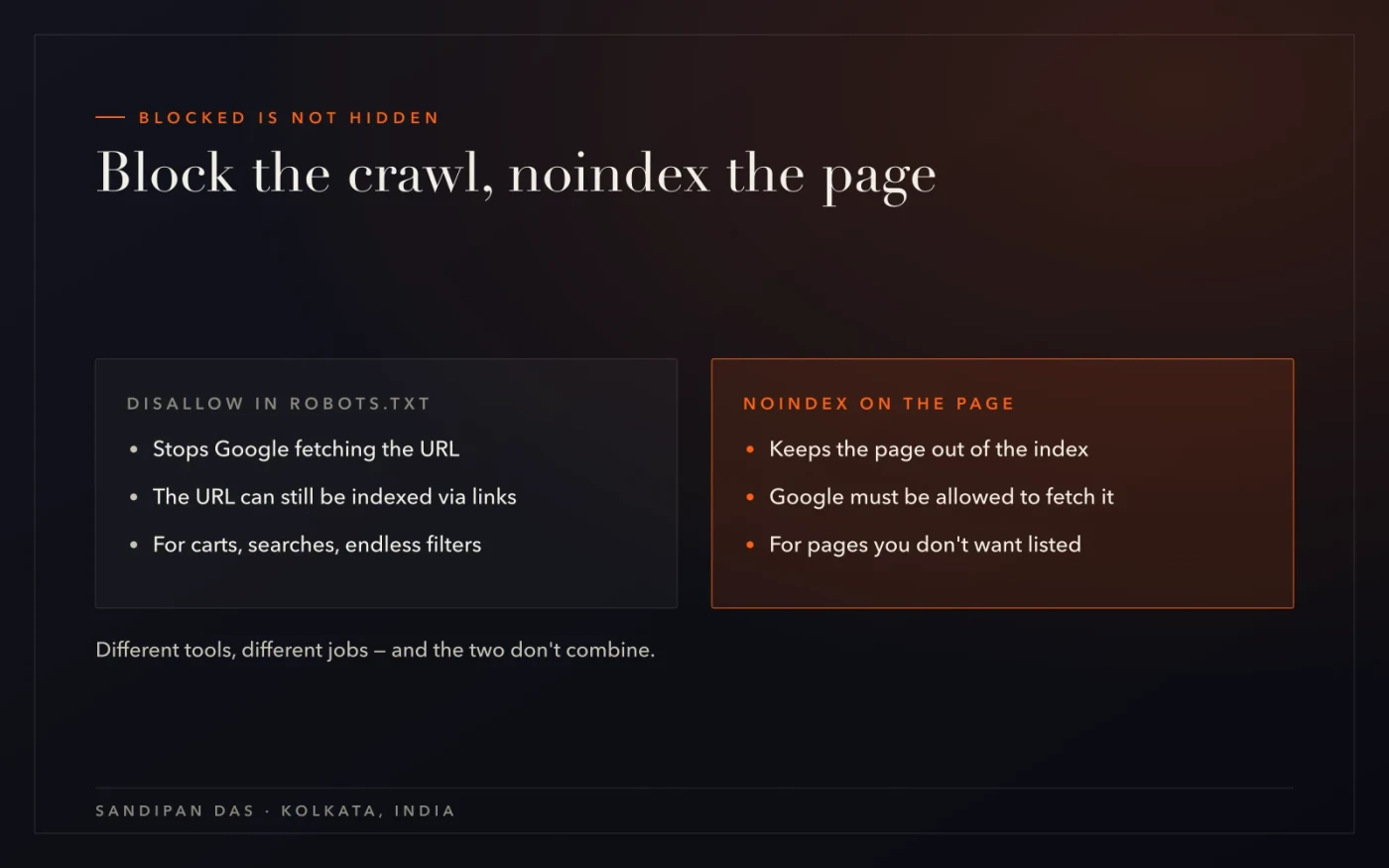
The point to remember: a Disallow in robots.txt does not keep a page out of Google. In Google's words, robots.txt is "not a mechanism for keeping a web page out of Google" — a blocked URL can still be indexed and shown, without a description, if something links to it.
To keep a page out of the index, use a noindex tag on the page, or put it behind a login. And the two don't combine: if you block a page in robots.txt and put a noindex on it, Google can't fetch the page to read the noindex, so the block wins and the URL may stay listed. Block what you don't want crawled — carts, searches, endless filters — and noindex what you don't want listed. Different tools, different jobs. How to fix indexing problems has the full map.
What's easy to get wrong
Four mistakes, in the order I find them.
- Disallow: / left from staging. One character. Read the live file on launch day.
- Blocking the asset folders. /wp-content/, /assets/, /static/ — Google needs the CSS and JS to render the page it's judging.
- Using robots.txt to hide a page. It doesn't. Blocked pages still get indexed through links; noindex is the tool.
- Checking the wrong host. The file on www and on non-www can differ; so can http and https. Check the canonical host's file.
robots.txt says where crawlers may go. It never says what Google may show. Block the crawl, noindex the page — and read the file on launch day.
Read next
The sitemap the file should point at, the indexing reasons, and the services.
- How to fix indexing problems — every reason, every fix
- How to check if a page is indexed by Google
- Free robots & sitemap checker
- Technical SEO services
- Website audit
If you'd rather have someone read it for you
Run the free robots & sitemap checker on your domain — if the site is blocked or the assets are, it says so. If the file is fine and the site still isn't showing, the problem is further in, and that's what a website audit finds.
Questions
Questions this post answers
Where should robots.txt be?
- At the root of the host: yourdomain.com/robots.txt, one file per host and protocol. A file in a subfolder is ignored, and www.yourdomain.com and yourdomain.com each read their own — check the one on the host Google indexes as the canonical.
What happens if there is no robots.txt?
- Nothing bad: no file means no restrictions, and crawlers fetch whatever they find. Most sites should still have one, if only for the Sitemap line and to keep crawlers out of carts, searches and admin paths — none of which affect what Google may show.
Does robots.txt block Google from indexing a page?
- No. It stops Google from fetching the page, but a URL that's linked from elsewhere can still be indexed and shown without a description. To keep a page out of Google, use a noindex tag on the page (which Google has to be allowed to fetch to read) or put the page behind a login.
How do I test robots.txt for one URL?
- Paste the URL into Search Console's URL Inspection: the crawl section says whether crawling is allowed and when Google last fetched it. For the file as a whole, Search Console's robots.txt report shows the copy Google holds and whether it parsed; the free robots & sitemap checker reads the live file from outside.