SEO for Developers · Business Tips
Google Search Console SEO audit: five reports, in order
Every other SEO tool guesses what Google sees. Search Console is Google telling you, for free. Here’s how to read it like an audit, one report at a time.


What is a Google Search Console SEO audit?
A Google Search Console SEO audit means reading five free Google reports in order: Page indexing (which pages Google has listed, and why not), Performance with the date compare on (what moved), Core Web Vitals (speed for real visitors), Sitemaps, and URL Inspection for the pages that matter most.
Everything else an audit uses — a crawler, a speed tool, a checker — is a guess about what Google sees. Search Console is Google saying it. I read it first on every site.
What this guide doesn't cover: keyword research for searches you don't rank for yet, link building, and on-page checks like one H1 and the meta description. The free SEO checker handles the last of those.
Step 1: Page indexing, the report to read first
How to check indexing issues
Page indexing is the first report because nothing else matters until it's read: a page Google hasn't listed can't rank, can't be cited and doesn't appear in any other report.
The top of the report is two numbers — pages indexed, pages not — and the number that matters is the second. Below it, the "Why pages aren't indexed" table (Google's help page lists every reason) shows each one with a count and a trend.
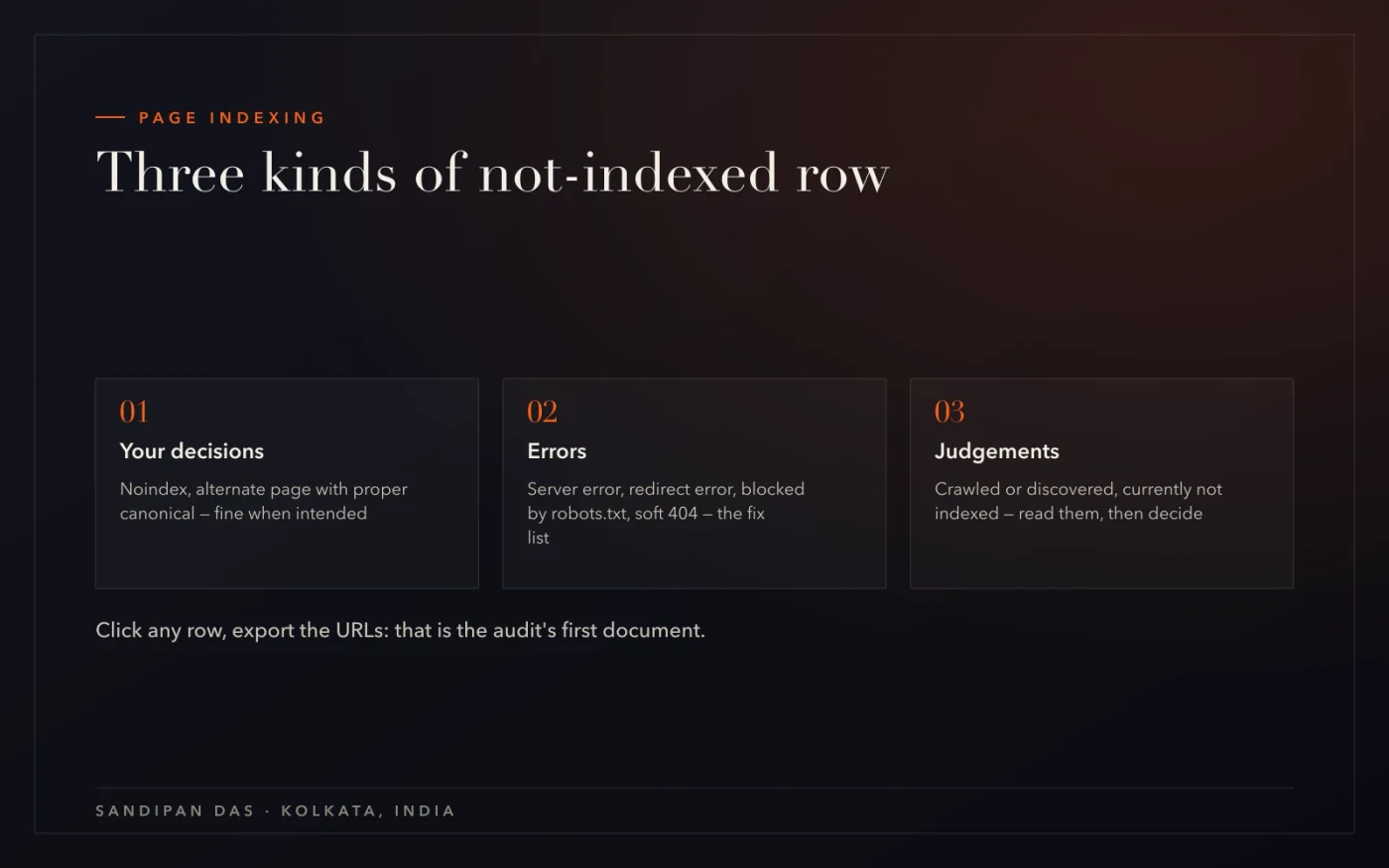
The rows fall into three kinds:
Your decisions — "Excluded by noindex tag" (a tag you set to keep a page out), "Alternate page with proper canonical tag" (a page that points Google at the original it duplicates): fine, as long as they're intended.
Errors — server error (5xx), redirect error, blocked by robots.txt, soft 404: the fix list.
Judgements — "Crawled - currently not indexed" and "Discovered - currently not indexed": these need reading, not fixing.
Click any row and you get the URLs, with an Export button. That export is the audit's first document: which pages Google declined, and whether you agree.
How to find pages not indexed by Google
The not-indexed list is the reasons table, exported row by row — and the useful move is sorting each list into pages you want indexed and pages you don't.
Often the "don't" pile is bigger: tag and category archives, filtered product lists, author pages, paginated lists, an old copy of a page. Google declined those and it was right; the fix is to make it official with a noindex tag or by taking them out of the sitemap, so your report shows only the pages you care about. The "want" pile — a service page, a real post — is where the work is, and the biggest bucket of those is usually "Crawled - currently not indexed": Google fetched the page and passed. That one has its own post, How to fix "Crawled - currently not indexed", with the decision per URL.
For a single page, URL Inspection gives the same answer faster: paste the URL, read the verdict, and "View crawled page" shows what Google actually fetched.
How to find SEO problems in Search Console
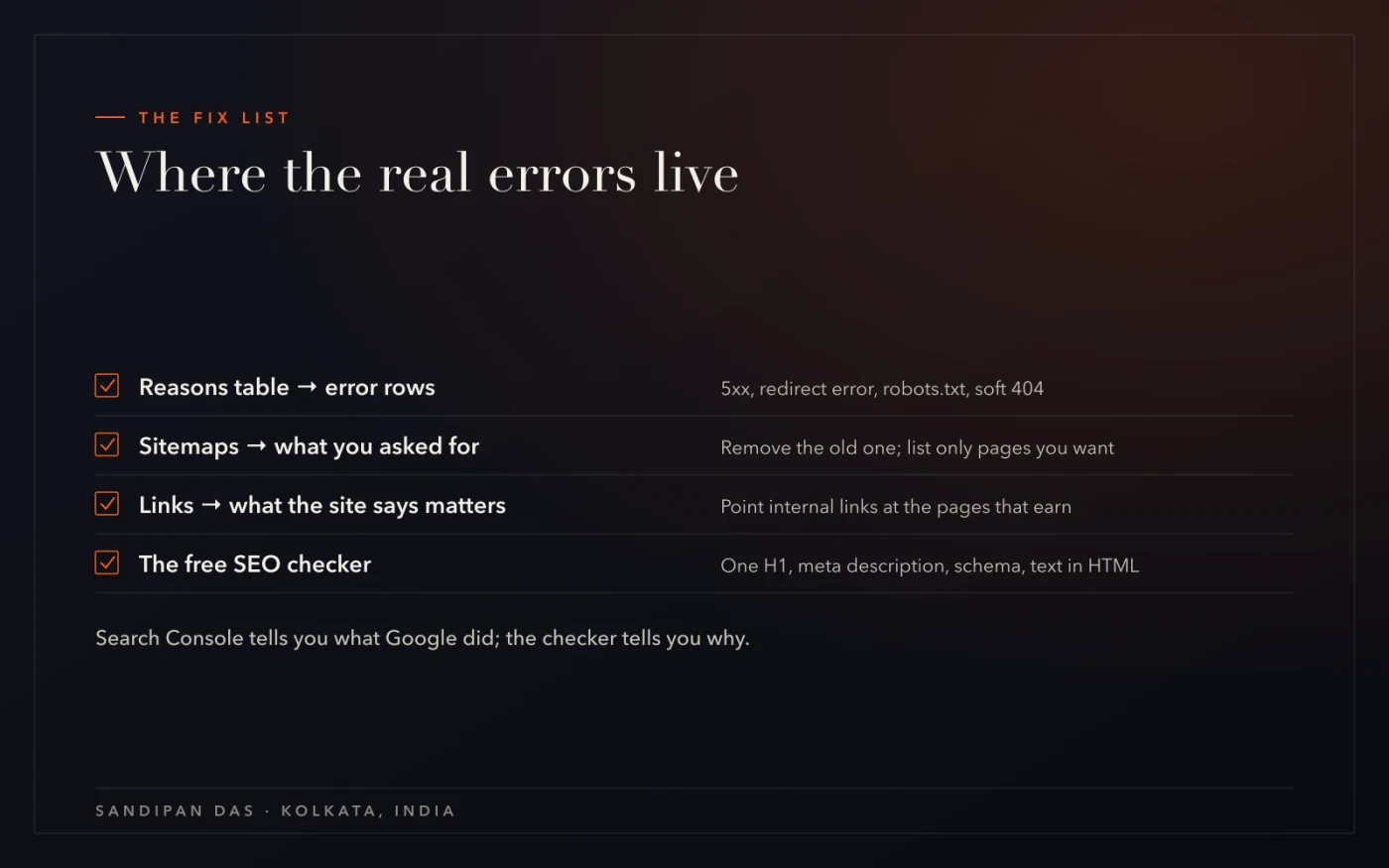
The real errors live in three places: the reasons table, the Sitemaps report and the Links report. Read them in that order and you have the technical fix list without running anything else.
Reasons table → errors. Server error (5xx), redirect error, blocked by robots.txt, soft 404, a noindex you didn't mean — each row is a list of URLs and a cause. The robots & sitemap checker confirms the first two from outside.
Sitemaps → what you asked for. An old sitemap that can't be fetched, a sitemap listing redirected URLs, a sitemap with a thousand pages Google has declined. Remove the old one; trim the rest to pages you want.
Links → what the site says matters. Top linked pages, internally, is the site's own vote for which pages count. If the contact page has three thousand internal links and the service page that earns the money has fourteen, the site is telling Google the wrong thing — fixed in the menu, the footer and the related-links blocks, not in Search Console.
Everything the reports can't see — one H1, the meta description, schema that matches the text, text in the HTML — the free SEO checker covers for you. Search Console tells you what Google did; the checker tells you why.
Step 2: Core Web Vitals, speed for real visitors
The Core Web Vitals report is measured on real visitors and grouped by URL pattern — which makes it the speed report to trust over a lab score, and the one that tells you which template to fix.
Core Web Vitals are Google's three measures of how a page feels: how long the main content takes to appear, how quickly the page responds to a tap, and how much it shifts around while loading. Google's help page says the report uses real-world data and groups similar pages together. It splits mobile and desktop, shows each URL as good, needs improvement or poor, and — the useful part — groups the poor ones by pattern: /services/* has a loading problem, /shop/* a responsiveness one. That's a template, not a page, and a template is one fix.
The order I run, every time:
Open the failing group, mobile first — Mobile is often the worse column. The group is a template — /services/*, /shop/* — and the issue names the measure: loading, responsiveness or layout shift.
Take one URL from the group and measure it — The speed check shows what's heavy on that page: the image that loads first, the scripts that block, the fonts. One URL is enough; the whole group shares the cause.
Fix the template, not the page — A hero image sized and compressed, a script deferred, a font loaded once — done in the template so every page in the group inherits it.
Wait for real visits — The report is measured on real visitors, so it moves as they come in; Google gives no timeframe. Mark the date of the fix and read the group again at the next monthly check.

Step 3: Performance, what moved and why
How to check website performance
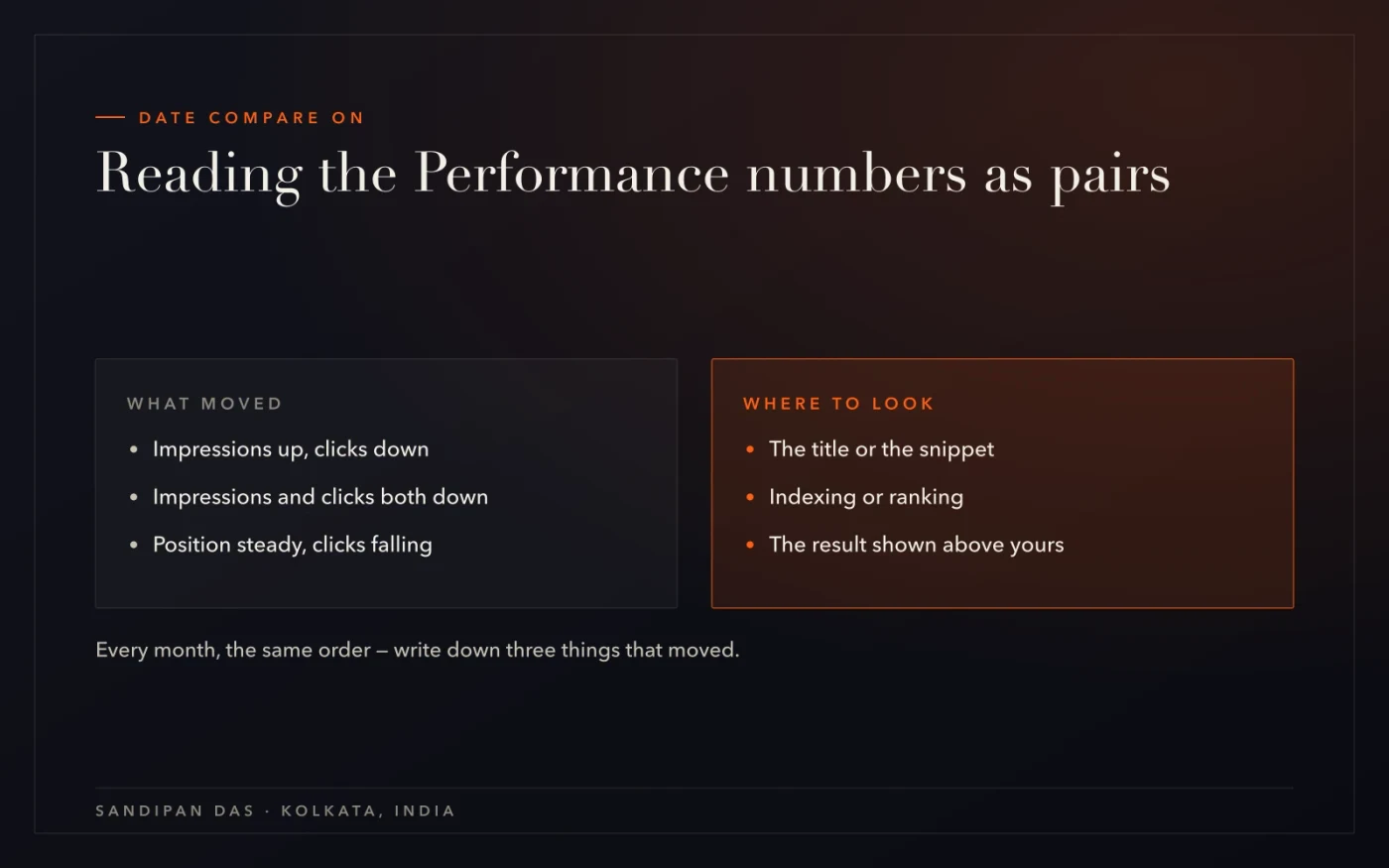
Performance is four numbers — clicks, impressions, click-through rate, average position — and none of them means anything alone. The report becomes an audit the moment you turn on the date compare.
Date → Compare → last three months against the previous three (Google's guide to the Performance report). Now every number has a direction, and the table underneath can be sorted by difference: which pages gained clicks, which lost them, which are shown more but clicked less. I read the four numbers as pairs. Impressions up with clicks down is a title or a snippet problem. Both down together is an indexing or ranking problem. Position steady with clicks falling is usually someone else's page getting the click above yours.
How to find keywords your website ranks for
Performance → Queries is Google's own list of what your site ranks for — every search that showed one of your pages, with its clicks, impressions and position. Filter by page to see what a single page ranks for; filter by query to see which page Google chose for it.
Two things I look for. First, the queries sitting between roughly position eight and twenty: pages on the edge of the first page, where a better title or a stronger internal link moves the needle. Second, the question-shaped queries — how, what, why, is — because those are the searches an answer engine is fielding. A page that answers one of them directly, answer first, is the page that gets quoted. That's the method in What is AEO?, and Search Console is where its raw material comes from.
What the list won't show: the searches you don't rank for at all. For those you need a keyword tool.
How to find pages losing traffic
Date compare on, Pages tab, sort by the click difference — descending shows what grew, ascending shows what's bleeding. The page at the top of the ascending list is the one to open first.
For each losing page, the same three checks, in the same order:
Impressions. Did Google stop showing the page — an indexing change, so back to Page indexing — or is it shown as often but clicked less, which is a snippet change: a title edited, a competitor's result made richer?
Position. Did it fall for its main query (filter by page, then read the queries table), or hold position while clicks fell anyway?
The date. Does the drop line up with a change on the site — a redesign, a migration, a plugin update, a redirect? Often it does.
Fix losing pages before writing anything new. They already had the traffic, so getting it back is usually faster than earning it.
How to identify a Google ranking drop
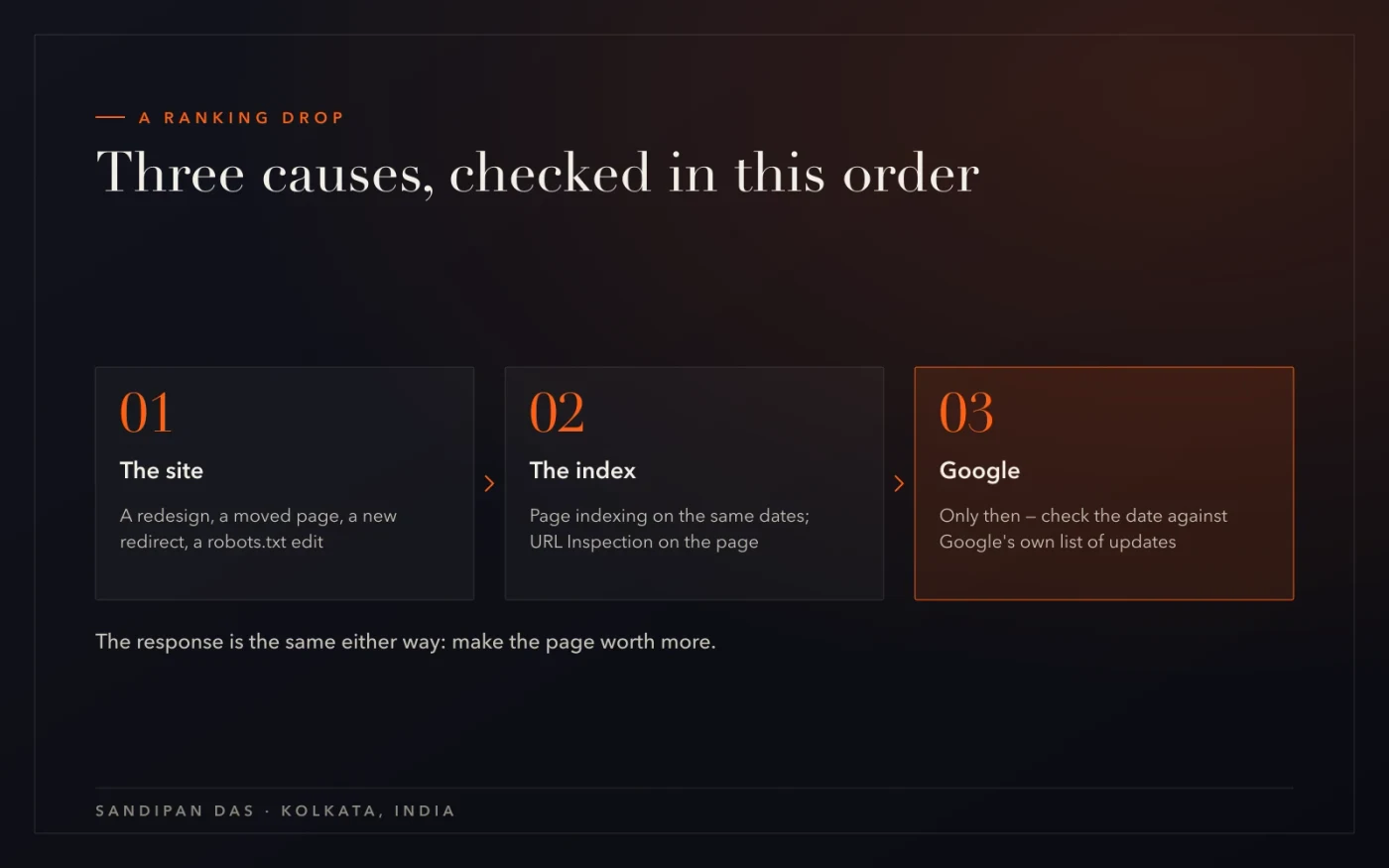
Three causes, checked in this order: something changed on the site, something changed in indexing, something changed at Google. In my audits the first is the usual cause, so that is where I look.
What changed on the site? — Performance → date compare → the drop's start date. Then the site's own history: a redesign, a moved page, a changed title, a new redirect, a plugin update, a robots.txt edit. If a change on the site lines up with the date, that's the cause until proven otherwise.
What changed in indexing? — Page indexing on the same dates: did the not-indexed count jump, did a reason row grow, did the page fall into "Crawled - currently not indexed"? URL Inspection on the dropped page: is it still on Google, and does the crawled HTML still contain the text?
Only then: what changed at Google? — If the site and the index are clean and many unrelated pages dropped on the same day, it may be an update on Google's side. Don't name one without a source — Google publishes its own list of ranking updates; check the date there. And the response is the same either way: the page has to be worth more than the one that replaced it.
Which report answers which question
The nine questions this guide answers, and the report each one lives in.
The question | The report | The move |
|---|---|---|
Is this page on Google? | URL Inspection | Paste the URL; read the verdict and the crawled HTML |
Which pages aren't indexed, and why? | Page indexing | Reasons table → export → sort into want / don't |
What's actually broken? | Page indexing · Sitemaps · Links | Error rows, dead sitemaps, the internal-link vote |
Is the site fast for real visitors? | Core Web Vitals | Open the failing URL group; fix the template |
Which pages and queries moved? | Performance | Date compare on; sort by difference |
What do we rank for? | Performance → Queries | Filter by page; find the question-shaped ones |
Which pages are losing traffic? | Performance → Pages | Ascending click difference; three checks each |
Why did rankings drop? | Performance + Page indexing | Site change → index change → Google, in that order |
What does the site say matters? | Links | Top internally linked pages vs the pages that earn |
What's easy to get wrong
Four mistakes, in the order I see them in an audit.
Never connecting it. It's free, and it is Google reporting on your own site. Connect it before any other step of the audit.
Reading Performance without the date compare. A number with no previous period is decoration. Turn the compare on and leave it on.
Blaming a Google update first. Check the site, then the index, then Google — in that order. A change on the site is the most common cause.
Treating every not-indexed URL as a problem. Tag pages and filters belong out of the index. Sort the list before fixing anything.
Five reports, in order, once a month — with the date compare on. Connect it once; the habit is the audit.
Read next
The post for the biggest not-indexed bucket, the answer-first pattern the Queries report feeds, and the services this belongs to.
If you'd rather have someone do this
My team and I have completed more than 900 projects since 2017. If you'd like the five reports read every month and written up in plain words, with the fixes named, book a short call.
Questions
Questions this post answers
Is Google Search Console free?
- Yes — Google Search Console is Google's own free tool for site owners, and it's the only place Google reports what it has indexed, which searches showed your pages and how real visitors experienced them. Connecting it takes one verification step, and from then on the reports fill in on their own.
What does "Crawled - currently not indexed" mean?
- Google fetched the page and chose not to add it to the index — a judgement about the page, not an error. The fix is a decision per URL: make the page worth indexing (text in the HTML, one topic, not a copy, linked from an indexed page) or stop asking with a noindex. The standalone post walks the list step by step.
Search Console or Google Analytics — which one for SEO?
- Search Console for SEO: it reports what happened on Google before the click — impressions, position, indexing, Core Web Vitals. Analytics reports what people did after they arrived. An audit needs the first; the second tells you whether the traffic was worth having.
How often should I check Search Console?
- Monthly, in the same five-report order with the date compare on, and write down the three things that moved. Weekly if a change is being watched — a fix to a not-indexed row, a template speed fix, a drop being traced. Search Console reports move as Google recrawls and real visitors arrive, so reading the trend tells you more than checking a single URL every day.