SEO for Developers
Blocked due to access forbidden (403)? Let Google back in
Why your site loads for people but tells Google "Forbidden", and how to fix it in Next.js, Vercel, Cloudflare and WordPress

Your website opens fine on your phone, your laptop and your client's office PC, yet Search Console says Google was told "Forbidden". That doesn't have to mean the page is broken. Something in front of it, like a firewall, a security plugin or one line of code, can turn Google away while letting people in.
Below: a test where a common "block bots" rule did exactly this, a surprise about Google's own testing tool, and the fix for Next.js, Vercel, Cloudflare and WordPress.
Why does Search Console say "Blocked due to access forbidden (403)"?
It means your server answered Google's crawler (Googlebot, the program Google uses to read pages) with a 403 "Forbidden" code instead of the page. People can still see the page, so the block is aimed at bots: often a firewall, a security plugin or a rule that blocks any visitor named "bot". Google won't index a page that returns 403.
A status code is the number a server sends with every page: 200 means "here you go", 403 means "not allowed". Search Console is Google's free dashboard for your site; its Page indexing report lists pages Google didn't index, with the reason.
Google's own help page is blunt about this row. It says a 403 means credentials were given but refused, and that "Googlebot never provides credentials, so your server is returning this error incorrectly." (Page indexing report help)
It isn't only new pages: pages already indexed that start returning a 4xx code (400 to 499) are removed from the index (How HTTP status codes affect Google's crawlers).
My test: one "block bots" line locked Google out
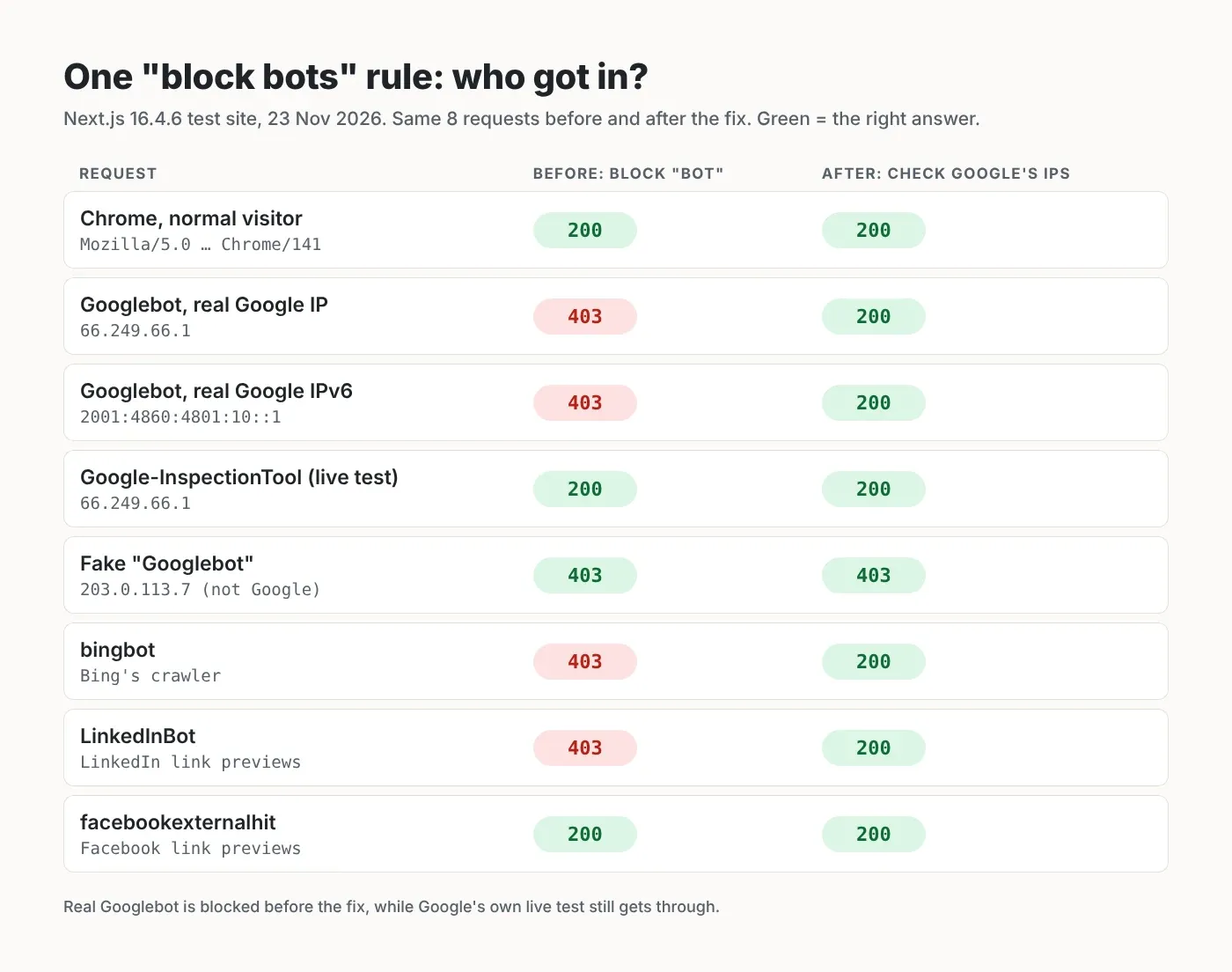
I built a small Next.js 16 test site today with a simple rule to stop scrapers: block any visitor whose user agent contains "bot", "crawler" or "spider". Googlebot got a 403. So did Bing's crawler and LinkedIn's link preview bot. A normal Chrome visitor got the page.
A user agent is the name tag every browser or bot sends with each request, like "Googlebot/2.1". Anyone can write anything on it.
How I tested (23 Nov 2026): a Next.js 16.4.6 production build on my test machine, fetched with curl (a command-line tool that loads a page) using the user agents from Google's crawler list plus common Bing, LinkedIn and Facebook ones.
Request (user agent, where it claims to come from) | Before: block "bot" | After: the fix below |
|---|---|---|
Chrome, normal visitor | 200 | 200 |
Googlebot, from a Google address (66.249.66.1) | 403 | 200 |
Googlebot, from a Google IPv6 address | 403 | 200 |
Google-InspectionTool (Search Console's live test) | 200 | 200 |
Fake "Googlebot" from a non-Google address | 403 | 403 |
bingbot | 403 | 200 |
LinkedInBot | 403 | 200 |
facebookexternalhit (Facebook's preview fetcher) | 200 | 200 |
Two rows surprised me. Facebook's fetcher and Google's own testing tool both got through, because neither name contains "bot". That second one is a trap.
The trap: Google's live test can pass while Googlebot is blocked
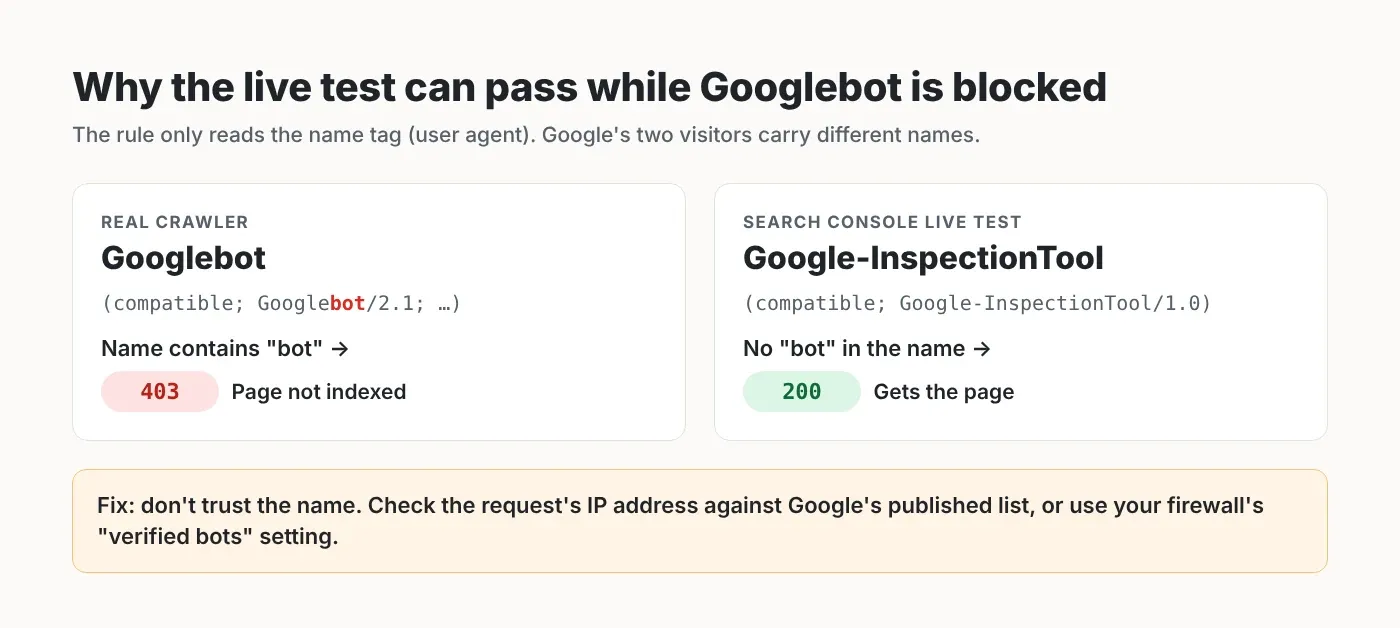
The URL Inspection "live test" in Search Console doesn't visit as "Googlebot". It uses a different name tag, Google-InspectionTool. So a rule that matches the word "bot" can let the live test through and still block the real crawler, and the live test will tell you everything is fine.
Google's docs say Google-InspectionTool is used by "Search testing tools such as the Rich Result Test and URL inspection in Search Console" (Google's common crawlers). Its name has no "bot" in it, so in my test the "before" rule let it in.
So a passing live test only proves your server lets Google-InspectionTool in. To be sure Googlebot gets in too, read the rule that blocks bots, not just the test result.
A rule that trusts the name tag will either lock out the real Googlebot or let in a fake one. Check where the request comes from, not what it calls itself.
Find what is sending the 403
Work from the outside in: the firewall or CDN in front of your site, then your host, then your security plugin or code. Look for anything that treats bots differently from people.
A CDN (content delivery network) like Cloudflare sits in front of your server. A firewall is any set of rules that decides which requests to block.
Is the page meant to be public? If it needs a login (a client area, a staging copy), the 403 is correct. Take it out of your sitemap and internal links instead.
Check your CDN or host firewall for rules that block by user agent, country or bot score, and any "attack" or "bot fight" mode.
Check your security plugin (WordPress) for rate limits, blocked IP lists and "fake crawler" settings.
Check your own code: a Next.js proxy file, an
.htaccessfile (Apache server settings) or other rules that test the user agent.
Forum threads on WordPress.org and the Cloudflare Community are full of these cases. That's widely reported, not documented by Google, so treat it as a place to start looking. If you'd like a second pair of eyes, start with our free website audit.
Next.js: stop blocking on the word "bot"
In Next.js 16 the old middleware file is now called proxy (proxy.ts). If yours blocks by user agent, remove that rule. If you want to stop fake Googlebots, check the request's IP address against Google's published list instead of trusting the name.
A proxy file (proxy.ts, called middleware.ts before Next.js 16) is code that runs before each page is sent. The Next.js docs say Middleware "is deprecated and renamed to Proxy" in v16.0.0, and Proxy runs on the Node.js runtime by default. An IP address is the number that says where a request really came from.
Here is the rule that caused the 403 in my test. If you have something like this, it's the problem:
// proxy.ts (Next.js 16) - the rule that caused the 403
import { NextResponse, type NextRequest } from 'next/server'

export function proxy(request: NextRequest) {
  const ua = request.headers.get('user-agent') ?? ''

  // "Block scrapers" - but Googlebot has "bot" in its name too
  if (/bot|crawler|spider/i.test(ua)) {
    return new NextResponse('Forbidden', { status: 403 })
  }
  return NextResponse.next()
}
The simplest fix is to delete that if block. To also stop scrapers that pretend to be Googlebot, Google gives two checks: a reverse DNS lookup (finding the domain name behind an IP address, which must end in googlebot.com, google.com or googleusercontent.com), or matching the IP against Google's published IP ranges, the "automatic" option for large sites (Verify requests from Google crawlers). I used the IP list.
Step 1. A small script downloads Google's list of common crawler IP ranges into your project. Run it before each build (for example as a prebuild script in package.json), because Google updates the file.
// scripts/update-google-ranges.mjs - download Google's crawler IP list before each build
import { writeFile } from 'node:fs/promises'

const SOURCE =
  process.env.RANGES_URL ?? // only set this when testing
  'https://developers.google.com/static/crawling/ipranges/common-crawlers.json'

const res = await fetch(SOURCE)
if (!res.ok) throw new Error(`Download failed: HTTP ${res.status}`)
const data = await res.json()
if (!Array.isArray(data.prefixes) || data.prefixes.length === 0) {
  throw new Error('Unexpected file format - keeping the old list')
}
const target = new URL('../lib/common-crawlers.json', import.meta.url)
await writeFile(target, JSON.stringify(data, null, 2) + '\n')
console.log(`Saved ${data.prefixes.length} ranges (Google file date: ${data.creationTime})`)
Step 2. A helper checks if an IP address is inside one of those ranges. It handles IPv4 (like 66.249.66.1) and IPv6 (the longer kind with colons), with no extra packages.
// lib/google-crawlers.ts - is this IP address inside Google's published crawler ranges?
import ranges from './common-crawlers.json'

type Prefix = { ipv4Prefix?: string; ipv6Prefix?: string }
type Ip = { v6: boolean; groups: number[] } // the address as 16-bit chunks
type Range = { ip: Ip; length: number }

function parseIpv4(ip: string): Ip | null {
  const parts = ip.split('.')
  if (parts.length !== 4 || parts.some((p) => !/^\d{1,3}$/.test(p) || Number(p) > 255)) return null
  const [a, b, c, d] = parts.map(Number)
  return { v6: false, groups: [(a << 8) | b, (c << 8) | d] }
}

function parseIpv6(ip: string): Ip | null {
  const halves = ip.split('::')
  if (halves.length > 2) return null
  const head = halves[0] ? halves[0].split(':') : []
  const tail = halves.length === 2 && halves[1] ? halves[1].split(':') : []
  const zeros = halves.length === 2 ? 8 - head.length - tail.length : 0
  if (zeros < 0 || (halves.length === 1 && head.length !== 8)) return null
  const all = [...head, ...Array<string>(zeros).fill('0'), ...tail]
  if (all.some((g) => !/^[0-9a-f]{1,4}$/i.test(g))) return null
  return { v6: true, groups: all.map((g) => parseInt(g, 16)) }
}

function parseIp(ip: string): Ip | null {
  const mapped = ip.match(/^::ffff:(\d+\.\d+\.\d+\.\d+)$/i) // IPv4 written as IPv6
  return parseIpv4(mapped ? mapped[1] : ip) ?? parseIpv6(ip)
}

function inRange(ip: Ip, range: Range): boolean {
  if (ip.v6 !== range.ip.v6) return false
  for (let i = 0, left = range.length; left > 0; i++, left -= 16) {
    const mask = (0xffff << (16 - Math.min(16, left))) & 0xffff
    if ((ip.groups[i] & mask) !== (range.ip.groups[i] & mask)) return false
  }
  return true
}

const RANGES: Range[] = (ranges.prefixes as Prefix[]).flatMap((p) => {
  const [address, length] = (p.ipv4Prefix ?? p.ipv6Prefix ?? '').split('/')
  const ip = parseIp(address)
  return ip && length ? [{ ip, length: Number(length) }] : []
})

export function isGoogleCrawlerIp(ip: string): boolean {
  const parsed = parseIp(ip)
  return parsed !== null && RANGES.some((range) => inRange(parsed, range))
}
Step 3. The proxy only blocks requests that claim to be Google and don't come from Google's addresses. Everyone else, including other search engines, gets through.
// proxy.ts (Next.js 16) - block fake Googlebots, never the real one
import { NextResponse, type NextRequest } from 'next/server'
import { isGoogleCrawlerIp } from './lib/google-crawlers'

// Requests that SAY they are Google's crawler (Googlebot, or the URL Inspection tool)
const CLAIMS_GOOGLE = /Googlebot|Google-InspectionTool/i

function clientIp(request: NextRequest): string {
  // On Vercel, x-forwarded-for is set by Vercel and visitors can't fake it.
  // On other hosts, only trust it if your own CDN or server overwrites it.
  return request.headers.get('x-forwarded-for')?.split(',')[0]?.trim() ?? ''
}

export function proxy(request: NextRequest) {
  const ua = request.headers.get('user-agent') ?? ''

  if (CLAIMS_GOOGLE.test(ua) && !isGoogleCrawlerIp(clientIp(request))) {
    // Says "Googlebot" but doesn't come from Google's published addresses
    return new NextResponse('Forbidden', { status: 403 })
  }
  return NextResponse.next()
}

export const config = {
  matcher: ['/((?!_next/static|_next/image|favicon.ico).*)'],
}
Checked against Next.js 16.4.6, React 19.3.1 and TypeScript 7.0.2: next build and a strict type check passed, and the helper was right for 11 test addresses, including the edges of Google's ranges. The matcher keeps the proxy off Next.js's own script and image files.
One limit: x-forwarded-for is a header (a label sent with the request) carrying the visitor's IP. In my test I set it by hand to make the real and fake rows. So if your host doesn't overwrite it, a scraper can fake it too.
Vercel, Cloudflare and WordPress
Each of these has its own bot setting, and each can cause or fix this 403. The rule of thumb is the same everywhere: use the platform's "verified bot" check instead of matching names yourself.
Vercel
Vercel says "Search engine crawlers like Googlebot are automatically allowed through" its Attack Mode (Vercel Attack Mode). Custom firewall rules you write do exactly what you tell them, so check any that match on user agent. Vercel also overwrites the X-Forwarded-For header "to prevent IP spoofing" (Vercel request headers), which is why the proxy above can trust it there. But the same doc says Vercel does "not forward external IPs" when it sits behind another proxy, so if Cloudflare is in front of Vercel, the IP check would see Cloudflare's address and block the real Googlebot. In that setup, skip the IP check and use Cloudflare's Known Bots check below.
Cloudflare
In a Cloudflare custom rule (a web application firewall, or WAF, rule), add the "Known Bots" check so verified crawlers skip the block. Cloudflare's example uses (ip.src.country in {"US" "MX"} and not cf.client.bot), where cf.client.bot is true for "a known good bot or crawler" (Cloudflare: allow search engine bots). Watch out for Bot Fight Mode: Cloudflare says you "cannot bypass or skip Bot Fight Mode using WAF custom rules", and points to Super Bot Fight Mode if you need exceptions (Cloudflare Bot Fight Mode).
WordPress
On WordPress, check your security plugin first. Wordfence, for example, has a rate limiting setting (a cap on requests per visitor) for Google's crawlers. Its strict choice, "Verified Google crawlers have unlimited access to this site", uses a reverse DNS lookup to check the visitor really is Google (Wordfence rate limiting). That's the one I'd pick. In any plugin, also check its blocked IP list.
After the fix: check, then tell Google
Re-read the rule you changed, run the URL Inspection live test on a few reported URLs, then click "Validate fix" on the "Blocked due to access forbidden (403)" row in the Page indexing report. Google says validation "typically takes up to about two weeks, but in some cases can take much longer."
Pick 3 to 5 URLs from the report row.
Run URL Inspection (the search box at the top of Search Console) and click "Test live URL". Keep the trap above in mind.
Click Validate fix on the row (Page indexing report help).
Don't test by sending "Googlebot" from your own laptop: if you added the IP check, that fake request should now get a 403.
Don't use 403 to slow Google down if your server is busy. Google's docs say "Don't use 401 and 403 status codes for limiting the crawl rate", and that a 429 code is treated as a sign the server is overloaded.
What's easy to get wrong
Trusting the live test alone. It uses Google-InspectionTool, not Googlebot. A name-based rule can treat them differently.
Blocking on "bot". It catches Googlebot, Bing and LinkedIn previews, and misses scrapers that use a browser's name.
Allowing anyone who says "Googlebot". That's the opposite mistake. Anyone can type that name.
Trusting x-forwarded-for everywhere. Only trust it when your host or CDN sets it.
A stale IP list. Google updates its ranges. Download the file on every build.
What I tested, and what I didn't
Tested (23 Nov 2026): the two proxy versions on a local Next.js 16.4.6 production build, 9 requests each with real user agent strings, and the IP helper against 11 addresses, using Google's common crawler IP list dated 20 Nov 2026 (317 ranges).
Not tested: real Googlebot traffic (the test site ran on my machine, so Google rows used a hand-set IP), reverse DNS lookups (my test machine couldn't run them), and real Cloudflare, Vercel or Wordfence setups. Those sections come from each company's docs.
Read next
If you'd rather have someone do this
Firewall rules are hard to see. If Search Console keeps showing 403s and you'd like my team (developers and SEO specialists in our Kolkata office, building sites since 2017) to find the rule and fix it safely, book a short call.
Questions
Questions this post answers
Does a 403 error hurt my SEO?
- For the pages that return it, yes. Google doesn't index pages that return a 403, and Google's docs say pages already in the index are removed if they start returning a 4xx code. If the block covers your whole site, none of it can be indexed until you fix it.
Why do I see the 403 in Search Console but not in my browser?
- Because the block is aimed at bots, not people. A firewall, CDN (a network that sits in front of your server), security plugin or code rule is looking at the user agent (the name a visitor sends) or the IP address and treating Google differently. Your browser sends a normal name, so it gets the page.
Is it safe to allow all requests that say "Googlebot"?
- No. Anyone can send the name "Googlebot", so allowing it by name lets scrapers in too. Google suggests checking the request instead: a reverse DNS lookup (finding the domain name behind an IP address) that ends in googlebot.com, google.com or googleusercontent.com, or matching the IP against Google's published IP ranges.
Can Cloudflare block Googlebot?
- It can if a rule blocks or challenges requests without excluding known bots. In Cloudflare custom rules, add "not cf.client.bot" (the Known Bots check) so verified crawlers skip the rule. Cloudflare also says Bot Fight Mode can't be skipped with custom rules, so check that setting too if the 403s continue.
How long until the 403 row clears after I fix it?
- After the fix, click "Validate fix" on the row in the Page indexing report. Google says validation typically takes up to about two weeks, but in some cases can take much longer. While you wait, judge the fix by the rule itself and the live test.